IPTV Setup Instructions
READ THESE INSTRUCTIONS CAREFULLY AND FOLLOW THEM STEP BY STEP
Hundreds of people have installed both apps successfully following these instructions.
I can not assist those who don't read these instructions and expect me to text them every step of this process.
PART 1
- From the Firestick homepage, using your remote, click right until you are at Settings (a gear icon).
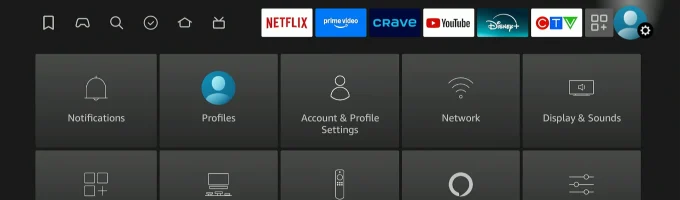
- Click on My Fire TV
- If you already see Developer Options at the bottom of the list, go to PART 2
- If you don't see Developer Options at the bottom continue
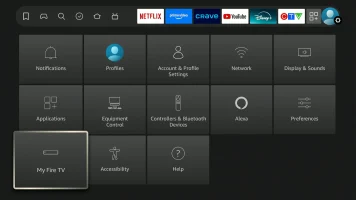
- Click About
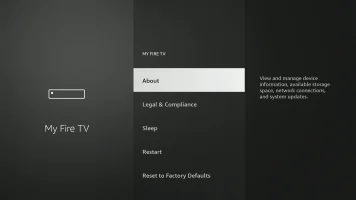
- Make sure the first item is highlighted, it will usually say "Fire TV Stick 4K" or "Fire TV Stick 4K Max" or something similar.
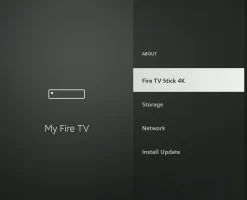
- Click the circle button on your remote 7 times quickly. As you do this, you will see a message saying "just X more clicks until a developer". When complete you will see a message saying "No need you’re already a developer".
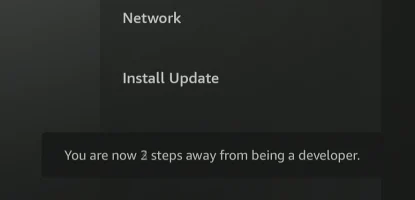
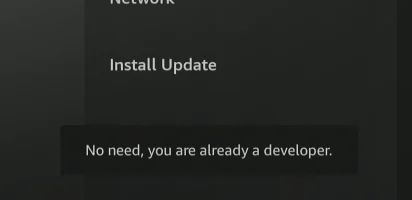
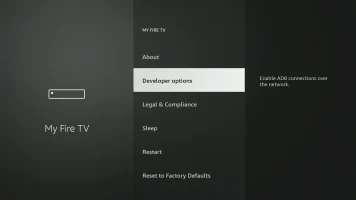
- Click back. You will see Developer Options at the top under About.
- Click the Home button to return to the home screen.
PART 2
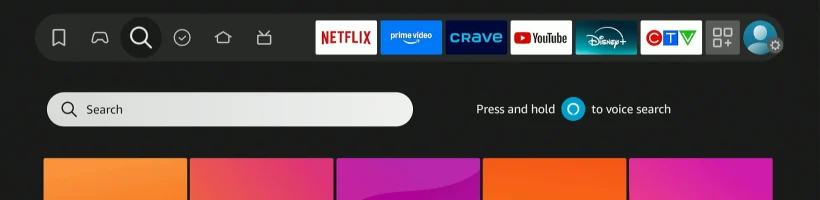
- From the Firestick homepage, click on the magnifying glass (left hand side).
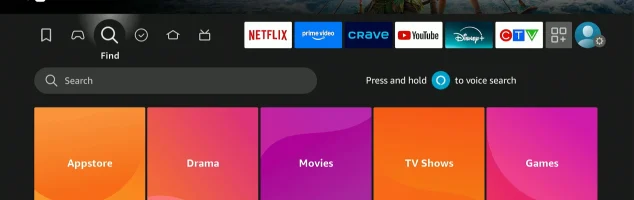
- Scroll down to Search and then click the circle button once to bring up the keyboard.
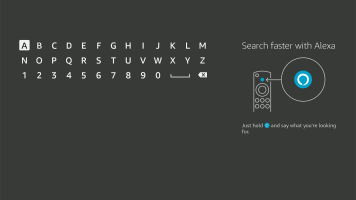
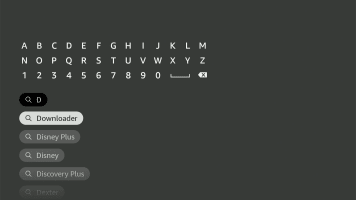
- Type in D. You will notice that Downloader appears below under the search items.
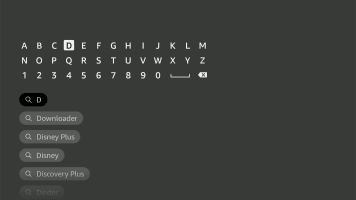
- Scroll down to highlight Downloader and then click the circle button once.
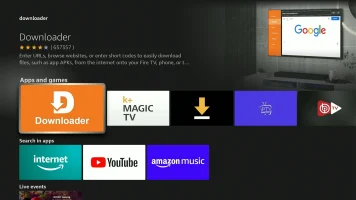
- The Downloader app page will appear. Click once.
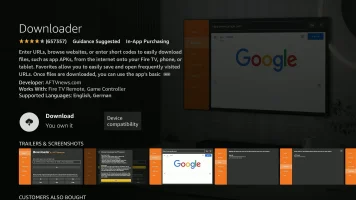
- Click Install or Download
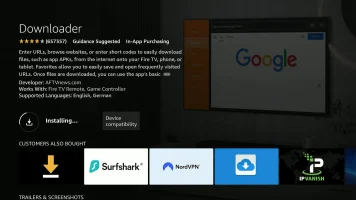
- Once the app has been installed, click the Home button.
- Go to Settings
- Click on My Fire TV
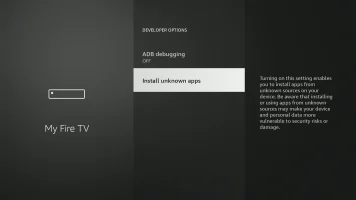
- Click Developer Options
- Click Install Unknown Apps
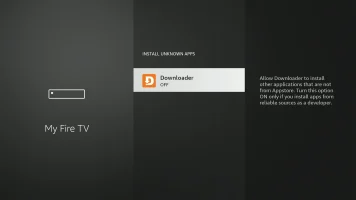
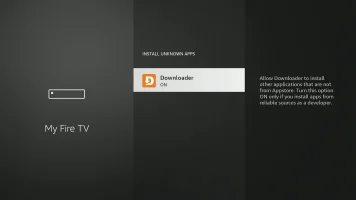
- Click Downloader. It will change from OFF to ON.
- Click the Home button
- Open the Downloader app.
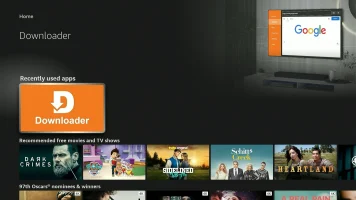
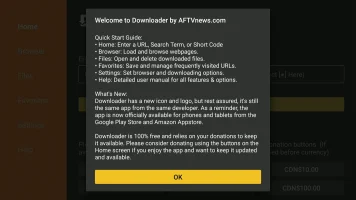
- Click OK to dismiss the initial message
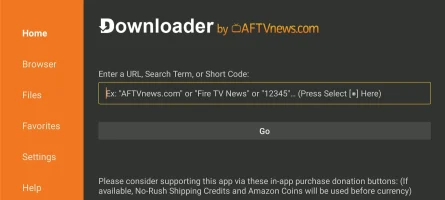
- Click UP until the "Enter a URL" space is highlighted.
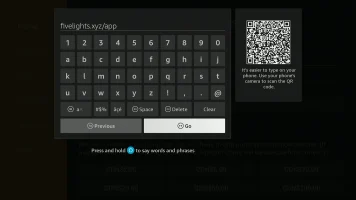
- Type in the following : fivelights.xyz/app
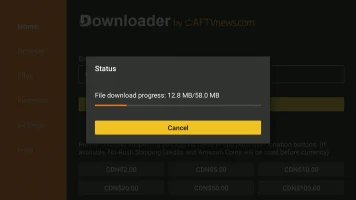
- Click Go and the Live TV app will download.
- The MMedia app install screen will appear. Click Install.

- Click Open

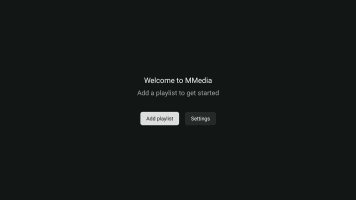
- Click Add Playlist
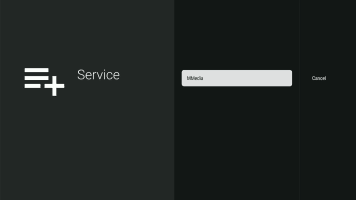
- Click MMedia
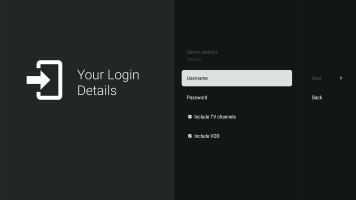
- Click Username. Enter your UserID and click Next.
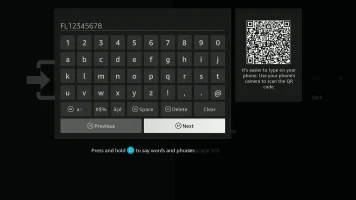
- Enter your Password and click Next.
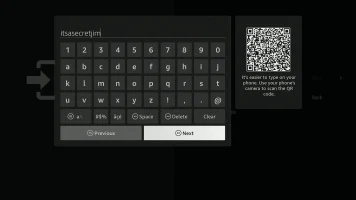
- Click down and unselect Include VOD (you use the Plex App for V.O.D.)
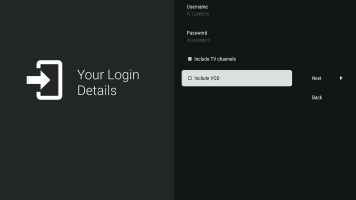
- Click Right and click Next.
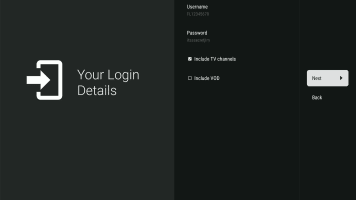
- Wait for the Playlist to download. Click Right and Click Done.
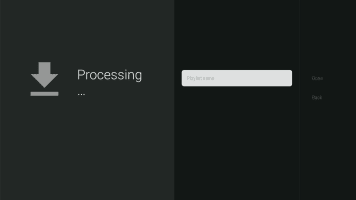
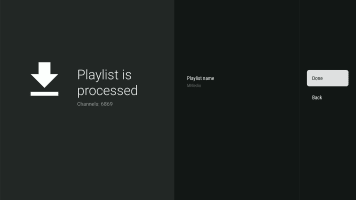
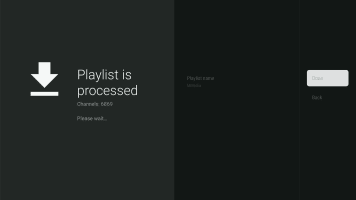
- Wait for the Playlist to process. You will arrive at the main screen.
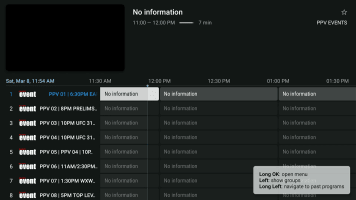
The E.P.G. will be empty. BE PATIENT! It is downloading.